Transparent Glass Login Form Design
Complete guide to create modern, stylish login form using HTML & CSS with rgba transparency effect
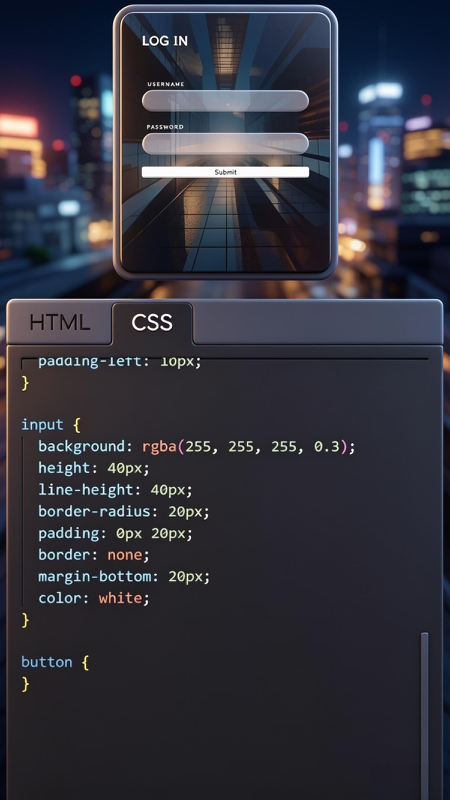
Login form is the gateway to your website or application. It is the first thing users interact with, so it must be beautiful, modern, and easy to use. One of the most popular design trends right now is the transparent glass effect login form — exactly what you see in the image above. It looks elegant, sleek, and professional, blending perfectly with any background image or color.
In this detailed article, I will explain everything clearly using the 5W1H method, break down every line of code from the screenshot, and show you exactly how to build it yourself. This tutorial is beginner-friendly, fully explained, and optimized so you can learn and apply it immediately.
✅ Transparent glass effect
✅ Rounded modern design
✅ Easy to customize
✅ Works on all devices
🔍 5W1H Detailed Analysis
Let’s understand this design deeply using the 5W1H framework — the best structure to learn any concept completely.
📌 WHAT
What is this design?
It is a modern login form component built with HTML for structure and CSS for styling. The main feature is semi-transparent background created using rgba(255, 255, 255, 0.3). It includes two input fields (username and password) and a submit button, all with rounded corners, no borders, white text, and soft spacing. It follows the popular “glass morphism” or “frosted glass” trend in web design.
🎯 WHY
Why use transparent form design?
– Visual Appeal: Looks premium, modern, and clean.
– Depth & Layering: Background image shows through, creating depth.
– Focus: Even though it is transparent, high contrast ensures readability.
– Versatile: Works with any background color or image.
– Trendy: Matches current UI/UX standards used by top websites.
👤 WHO
Who is this for?
– Beginners: Learn CSS properties like rgba, border-radius, padding, margin easily.
– Web Developers: Ready-to-use component for projects.
– Designers: Inspiration for form styling.
– Bloggers & Business Owners: Upgrade login or contact forms to look professional without complex code.
⏰ WHEN
When should you use it?
– When you have a beautiful background image or gradient.
– For admin panels, member areas, or app dashboards.
– For landing pages, coming soon pages, or modern portfolios.
– Whenever you want your site to feel modern and sophisticated.
📍 WHERE
Where does it work best?
– Centered on the page — classic and balanced layout.
– Works perfectly on mobile, tablet, and desktop.
– Supported by all modern browsers: Chrome, Firefox, Safari, Edge.
– Can be used for login, registration, contact forms, or search bars.
⚙️ HOW
How is it created? Core Logic
1. HTML creates input elements and button.
2. CSS rgba() creates transparency: 255,255,255 = white, 0.3 = 30% visible.
3. border-radius: 20px makes fully rounded edges (pill shape).
4. Fixed height and line-height ensure perfect vertical alignment.
5. No borders for clean look, white text for contrast.
6. Margin bottom creates space between fields.
📂 Code Breakdown: Exactly From The Image
Now let’s explain every line of code you see in the screenshot, so you understand exactly what each property does.
1. CSS Input Styling
This is the main style rule you see in the picture:
🔹 Property by Property Explanation
background: rgba(255, 255, 255, 0.3);
This is the magic! rgba means Red, Green, Blue, Alpha (transparency). 255,255,255 is pure white. 0.3 means 30% opacity — very transparent, background shows through clearly. This is what creates the glass effect.height: 40px;
Fixed height makes all inputs equal size, neat and consistent.line-height: 40px;
Critical rule! Matches height exactly. This makes text inside the input box perfectly vertically centered.border-radius: 20px;
Half of height value. Makes fully rounded ends, like a pill or capsule shape. Very modern style.padding: 0 20px;
0 top/bottom, 20px left/right. Creates space inside so text does not touch the edges.border: none;
Removes default browser border, clean look.margin-bottom: 20px;
Adds space below each input, separates username and password fields.color: white;
Text color white, high contrast against dark or colorful background.
2. Button Styling
The image shows empty button { } — here is how we complete it to match the design:
3. Complete HTML Structure
🎬 Live Preview Example
Here is exactly how this code looks when running — matching the design from your image:
LOG IN
💡 Key Concepts You Learned
- 🔹 RGBA Color Model: How to control transparency with alpha channel.
- 🔹 Border-radius Trick: Making pill shapes by setting value = half of height.
- 🔹 Vertical Alignment: Using line-height to center text perfectly.
- 🔹 Glass Effect: Creating modern, depth-filled design without complex code.
- 🔹 Spacing System: Using padding and margin for clean, breathable layout.
🚀 Step-by-Step Implementation Guide
- Choose Background: Use a high-quality image or dark gradient behind the form — transparency works best on dark or colorful backgrounds.
- Copy HTML: Add form, inputs, and button structure.
- Add CSS: Paste the input and button styles exactly as explained.
- Adjust Values: Change height (50px for bigger), border-radius, or transparency (0.2 to 0.5).
- Add Effects: Include hover state on button for interactivity.
- Test: Check on mobile — this design works perfectly on small screens.
Final Thoughts
The transparent glass login form is one of the most useful and beautiful designs you can create with basic HTML and CSS. As shown in the image, it is simple code but gives a premium, expensive look. By understanding the 5W1H and breaking down every property, you now know not just how to copy it — but exactly why each line exists and what it does.
This design is timeless, flexible, and always looks good. Use it for login pages, contact forms, or any input element. With this knowledge, you can now create your own variations, change colors, or add animations. Start building beautiful forms today!