Magic Navigation Menu 3
Create beautiful, animated, responsive navigation bar with pure HTML & CSS — complete guide with 5W1H analysis
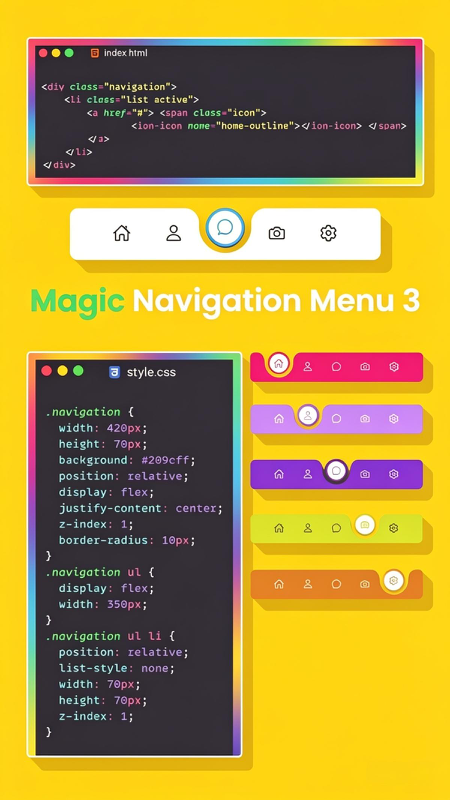
Navigation menu is one of the most important parts of any website. It guides users, improves experience, and makes your site look professional. Today, we will learn about Magic Navigation Menu 3 — a stunning, creative, and fully animated menu built only with HTML and CSS. As you see in the image above, this menu is not just functional — it is beautiful, colorful, and interactive. It has smooth movement, active indicator, and works perfectly on every device.
In this article, I will explain everything in detail using the 5W1H method (What, Why, Who, When, Where, How), break down every line of code, and teach you exactly how to build it yourself. This is perfect for beginners and developers who want to make their sites stand out.
✅ Smooth animation
✅ Responsive design
✅ Customizable colors
✅ Easy to understand
🔍 5W1H Complete Analysis
To understand deeply, let’s analyze this project using the 5W1H framework — the best way to learn any concept thoroughly.
📌 WHAT
What is Magic Navigation Menu 3?
It is a modern, animated bottom navigation bar made with HTML structure and CSS styling. It includes icons, smooth sliding indicator, rounded corners, and color-changing effects. It uses Flexbox for perfect alignment and positioning techniques to create the “magic” moving highlight. The code shown in the image includes index.html for structure and style.css for design and animation.
🎯 WHY
Why use this navigation style?
– Better UX: Users clearly see which page is active.
– Modern Look: Matches current app and web design trends.
– Engaging: Animation makes interaction fun and satisfying.
– Lightweight: No JavaScript — loads fast, works everywhere.
– Professional: Elevates the quality of your website instantly.
👤 WHO
Who is this for?
– Beginners: Learn CSS Flexbox, positioning, and animation easily.
– Web Developers: Ready-to-use component for projects.
– Designers: Inspiration for creative navigation ideas.
– Bloggers & Business Owners: Improve site navigation and appearance without complex code.
⏰ WHEN
When should you use it?
– For mobile-first websites or web apps.
– When you want clean, minimal but attractive navigation.
– For portfolios, landing pages, blogs, or dashboards.
– Anytime you need a fixed bottom menu — very popular in modern UI/UX design.
📍 WHERE
Where does it work best?
– Placed at the bottom of the screen — easy to reach on mobile.
– Works on all browsers: Chrome, Firefox, Safari, Edge.
– Perfect for single-page sites or multi-page websites.
– Can be adapted for top navigation or side navigation too.
⚙️ HOW
How is it built? (Core Logic)
1. HTML creates list items with links and icons.
2. CSS sets fixed width, height, background color (#209cff as base), and rounded corners.
3. Flexbox centers items perfectly.
4. Position relative/absolute creates the moving indicator.
5. CSS transitions make movement smooth.
6. Different color themes (pink, purple, green, orange) show customization power.
📂 Code Breakdown: From Image to Reality
Now let’s explain exactly the code you see in the picture, line by line, so you understand every part.
1. HTML Structure (index.html)
This is the skeleton. We use a div with class navigation, an unordered list, list items, links, and icon elements. Ion Icons are used here — a popular free icon library.
Explanation: The active class marks the current page. span.icon holds the icon. Ion Icons give us beautiful, scalable vector icons easily.
2. CSS Styling (style.css)
This is where the magic happens. Let’s go through the key rules from the image:
🔹 .navigation Class
Details: Fixed width and height, blue background #209cff. display: flex + justify-content: center puts everything in the middle. border-radius: 10px makes rounded corners. position: relative is crucial — it becomes the reference for absolutely positioned elements inside.
🔹 .navigation ul
Details: The list itself is also flex, so items line up horizontally automatically. Width 350px leaves space on sides for nice spacing.
🔹 .navigation ul li
Details: Removes default bullet points (list-style: none). Each item is exactly 70px × 70px — perfect square. position: relative prepares for hover/active effects.
3. The “Magic” Part: Indicator & Animation
The code in the image is the base. To make it move, we add these rules:
How it works: A white circle sits on top. When you click or set active class, CSS moves it horizontally using transform: translateX(). Transition makes it slide smoothly over 0.5 seconds — that is the magic movement you see.
4. Color Variations
In the image, you see 5 different colors: blue, pink, purple, green, orange. Changing theme is super easy — just change one value:
- 🔵 Blue:
background: #209cff; - 🔴 Pink:
background: #ff4081; - 🟣 Purple:
background: #7b1fa2; - 🟢 Green:
background: #4caf50; - 🟠 Orange:
background: #ff9800;
Everything else stays the same. This makes it very easy to match your brand color.
✅ Key Features You Get
- 🔹 Perfect Alignment: Flexbox ensures items are always centered and equal size.
- 🔹 Smooth Animation: 0.5s ease transition looks natural and premium.
- 🔹 Icon Support: Works with Ion Icons, Font Awesome, or custom SVGs.
- 🔹 Customizable Size: Change width/height values easily.
- 🔹 Clean Code: Well-structured, easy to read and modify.
🚀 Step-by-Step Implementation Guide
- Prepare HTML: Copy the structure, add your menu items (Home, Profile, Search, Photos, Settings).
- Add Icon Library: Include Ion Icons script in your
<head>. - Copy CSS: Paste the base styles, indicator styles, and transitions.
- Set Active Item: Add
class="list active"to the current page item. - Customize: Change colors, size, or animation speed.
- Test: Check on mobile and desktop — adjust width if needed.
Final Thoughts
Magic Navigation Menu 3 is a perfect example of what you can create with just HTML and CSS. It proves you do not need complex JavaScript to make something impressive and functional. It solves the problem of boring navigation, improves user experience, and gives your website a modern, app-like feel.
By understanding the 5W1H and breaking down every line of code, you now do not just copy it — you truly know how it works. You can modify it, expand it, or use it in your own unique projects. Navigation is the key to a good website — make it magical!