Dark Mode Toggle Using Only CSS
Create beautiful light/dark theme switch — no JavaScript, pure code, smooth transition
Dark Mode is no longer just a trend — it has become a standard feature every modern website should have. Users love it because it is easier on the eyes, saves battery life, and looks premium. Most tutorials teach you to use JavaScript to switch themes, but there is a smarter, lighter, and faster way: Dark Mode Toggle Using Only CSS.
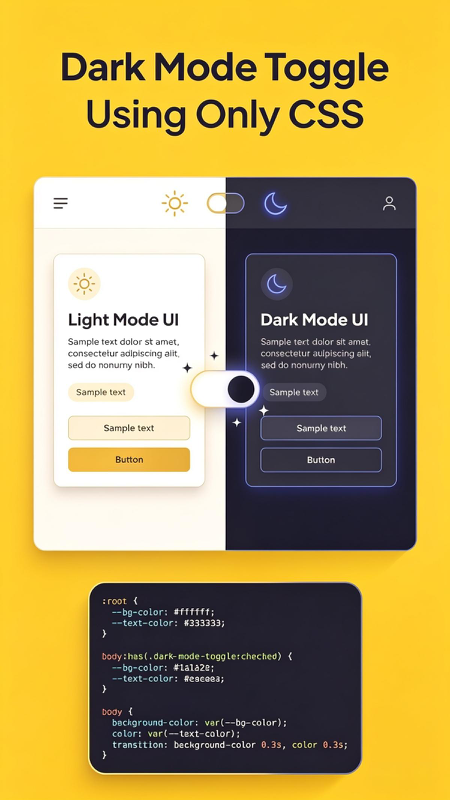
As you can see in the image above, this technique is clean, simple, and powerful. You get a perfect switch between bright Light Mode and sleek Dark Mode, with smooth color changes, and it is built entirely with CSS variables and a single checkbox trick. In this guide, I will explain exactly how it works, break down every line of code, and show you how to add it to your site today.
✅ Smooth color transition
✅ Easy to customize
✅ Works on all browsers
How Does It Work? Core Concept Explained
The magic comes from two powerful CSS features: CSS Variables (Custom Properties) and the :checked pseudo-class. Here is the simple logic behind it:
🎨 Step 1: Define Colors as Variables
First, you store your colors inside variables at the root level. In Light Mode, you set bright background and dark text. In Dark Mode, you simply change those same variables to dark background and light text. Every element on your page uses these variables, so when variables change — the whole design changes instantly.
🔘 Step 2: The Checkbox Trick
We use a standard HTML checkbox input, but we hide its default appearance and style it to look like a beautiful toggle switch. When the user clicks it, the checkbox becomes :checked. Using the CSS sibling selector, we detect this state and swap the color variables automatically.
✨ Step 3: Smooth Transition
Add a simple transition rule, and your colors will fade smoothly instead of flashing instantly. This small detail makes your site feel professional and polished.
Full Code Breakdown: From Image to Working Site
Let’s look at the exact code shown in the image and explain every part clearly. This is the complete foundation you need.
1. Define Variables at Root
Here we create our default (Light Mode) colors:
These are just names you create. You can name them anything: --primary-color, --card-bg, --border-color, etc.
2. Change Variables When Checked
When the toggle is ON (checked), we redefine the same variables to Dark Mode values:
Note: If you support older browsers, you can use body.dark-mode class instead, but :has() is now supported everywhere and makes it pure CSS magic.
3. Apply Variables to Body
Now tell your page to use these variables. Add a transition for smoothness:
That is it! Every element using var(--bg-color) or var(--text-color) will now switch automatically.
4. HTML Toggle Switch
Here is how to build the switch itself:
Complete Implementation Guide (Step-by-Step)
- Plan your color palette: Pick exact colors for both modes. Keep contrast high for readability.
- Define all variables: Background, text, buttons, borders, cards, links — everything must be a variable.
- Create the toggle input: Use label + input structure so clicking anywhere activates it.
- Style the switch: Make it look like the sun/moon toggle in the example — fun and clear.
- Apply variables everywhere: Replace every hardcoded color in your CSS with
var(--name). - Add transition: Always include
transition: all 0.3s ease— it makes it beautiful.
💡 Pro Tip from the Example
Notice how the image shows Sun icon on light side and Moon icon on dark side? You can add icons or emojis inside the switch so users instantly understand what it does. This small detail improves user experience a lot.
Why This Method Is Better Than JavaScript
- ⚡ Faster: Runs instantly — no waiting for scripts to load
- 📦 Lighter: Saves ~2KB–5KB of JavaScript code
- 🛡️ More Reliable: Works even if user disables JavaScript
- 🎨 Easier to Maintain: All colors are in one place, change once — done everywhere
- ✨ Cleaner Code: Pure separation of HTML/CSS without mixing logic
Best Practices for Perfect Dark Mode
To make your dark mode professional and comfortable to read:
- 🔹 Never use pure black (#000000): It is too harsh on eyes. Use dark gray or dark blue (#1a1a2e, #222222).
- 🔹 Reduce contrast slightly: In dark mode, bright white text on dark background can vibrate — use soft white (#eaeaea, #f1f1f1).
- 🔹 Adjust images: Lower brightness or saturation of photos in dark mode so they do not pop too hard.
- 🔹 Test everything: Buttons, links, borders, shadows — shadows must be lighter in dark mode.
Final Thoughts
Adding Dark Mode does not have to be complicated or heavy. As shown clearly in the image, Dark Mode Toggle Using Only CSS is elegant, simple, and powerful. It uses modern features like CSS variables and selectors to give your users exactly what they want — choice.
Start today: copy the code, customize your colors, add the switch, and you will instantly make your website more modern, user-friendly, and impressive. It is one of the best upgrades you can make, and now you know exactly how to do it right.