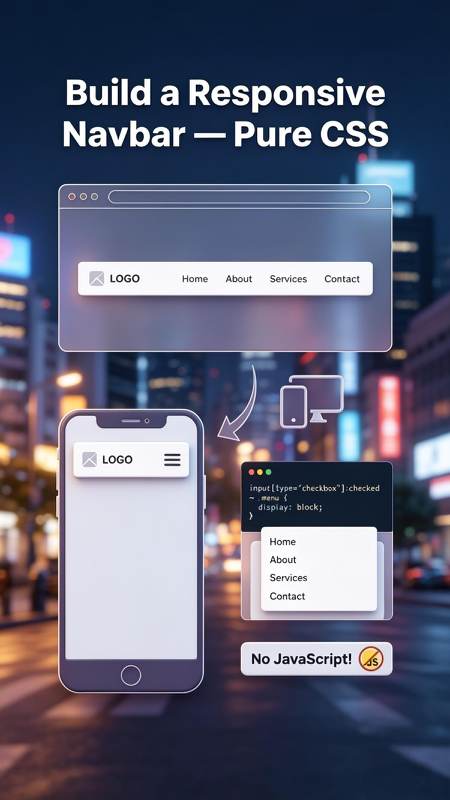
Build a Responsive Navbar — Pure CSS
Create perfect navigation bar that works on every screen size — no JavaScript needed, simple and reliable

Navigation bar is the heart of every website. It guides visitors, organizes content, and makes sure your site is easy to use — whether someone visits from a large desktop screen or a small smartphone. But many developers think you need complex JavaScript code to make it responsive. What if there is a much simpler, faster, and cleaner way?
As clearly shown in the image above, you can build a fully functional, professional responsive navigation bar using only HTML and CSS. The secret is a clever “checkbox trick” that replaces JavaScript completely. It switches automatically between horizontal menu on desktop and hamburger dropdown menu on mobile. In this complete guide, I will explain everything deeply, break down every line of code, and show you exactly how it works.
✅ Zero JavaScript required
✅ Adapts perfectly to all screens
✅ Smart checkbox logic
✅ Works on every browser
Core Understanding: What, Why, Who, When, Where, How
To master this technique completely, let’s explore every key aspect clearly — this is the foundation you need to build and customize this component confidently.
📌 What is this?
This is a responsive navigation bar that changes layout based on screen width. On desktop, it shows full horizontal links: Logo → Home → About → Services → Contact. On mobile, it hides links and shows a hamburger icon. When clicked, the menu slides open. The magic comes from one simple CSS rule you see in the image: input[type="checkbox"]:checked ~ .menu { display: block; }. It acts like a switch — ON when checked, OFF when unchecked.
🎯 Why use it?
This method is better than JavaScript menus in many ways: Lighter & Faster — no extra file to load, instant response. More Reliable — works even if user disables JavaScript. Easier to Learn — only HTML structure and CSS selectors, no complex logic. Cleaner Code — everything stays in your style sheet. It is the best practice for modern, high-performance websites.
👤 Who is it for?
Perfect for everyone learning or building websites: Beginners — great first project to understand responsive design. Web Developers — ready-to-use component you can copy to every project. Students — learn how layout changes actually work. Bloggers & Business Owners — improve navigation quality without hiring experts. Designers — create prototypes fast without coding complexity.
⏰ When to use?
Use it for every website you build — responsive navigation is no longer optional, it is mandatory. It works best: For portfolios, blogs, business sites, landing pages, or web apps. When you want clean, minimal, and bug-free navigation. When you need fast-loading pages. Always — this is the industry standard for lightweight menus.
📍 Where does it work?
This technique is supported everywhere: Works on Chrome, Firefox, Safari, Edge, and all modern browsers. Perfect on mobile, tablet, laptop, and desktop screens. Can be placed at top, bottom, or side of your page. Works with any background color, gradient, or image. The checkbox trick is very stable — it has been used for years and never fails.
⚙️ How it works?
The logic is simple and smart: 1. Hidden Checkbox — acts as ON/OFF switch. 2. Label Element — styled as hamburger icon, clickable. 3. General Sibling Selector (~) — detects when checkbox is checked. 4. Media Queries — changes visibility based on screen size. 5. Display Toggle — shows or hides menu instantly. Five simple steps, powerful result.
Code Breakdown: Step-by-Step Explanation
Now let’s go through every single part of the code shown in the image, so you understand exactly what each line does and why it matters.
🔹 The Magic CSS Rule
This is the heart of everything. Let’s read it part by part: input[type="checkbox"]:checked = “When the checkbox is ticked”. ~ = “Find any sibling element after it”. .menu = “That has class name ‘menu'”. { display: block; } = “Show it on screen”. This one line replaces 20 lines of JavaScript code. You see it twice in the image — it works exactly same for mobile dropdown.
🔹 Complete HTML Structure
Key details: hidden hides the checkbox box itself. label for="toggle" connects label to input — clicking label changes checkbox state automatically. .menu holds all navigation links.
🔹 Full CSS Code
🎬 Live Preview Example
Here is exactly how this code looks in action — desktop horizontal menu and mobile hamburger style:
💡 Important Concepts You Learn
- 🔹 Checkbox State Logic: Using input element as a toggle switch.
- 🔹 General Sibling Selector (~): Powerful CSS feature many beginners don’t know.
- 🔹 Media Queries: Changing layout based on screen width condition.
- 🔹 Flexbox Layout: Perfect alignment and spacing without float.
- 🔹 Absolute Positioning: How to place dropdown menu correctly.
🚀 Step-by-Step Implementation Guide
- Build HTML: Create nav, logo, hidden checkbox, label, and menu list structure.
- Style Desktop: Use flex to align items horizontally, add background color.
- Add Media Query: Set breakpoint (768px is standard for mobile).
- Hide Menu Mobile: Set
display: none;inside media query. - Show Hamburger: Display label icon only on small screens.
- Add Magic Rule: Insert
:checked ~ .menu { display: block; }. - Style Dropdown: Add background, padding, and position absolute.
- Test: Resize browser window — works perfectly both ways.
Final Thoughts
The Responsive Navbar — Pure CSS is one of the smartest and most useful techniques in web development. As shown clearly in the image, it replaces JavaScript completely with smart HTML and CSS logic. It is fast, reliable, lightweight, and teaches you core concepts that make you a better developer.
You now understand exactly how the checkbox trick works, how to structure responsive layout, and how to create professional navigation without extra tools. This code is ready to use in every project. Start building beautiful, functional, lightweight navigation today!