UI vs UX Design: Key Differences, Roles & Complete Guide
Understand exactly what User Interface and User Experience design are, what they do, and how they work together to build amazing products

📌 Introduction: What Are UI & UX Design?
UI and UX are two terms you hear everywhere in tech, apps, websites, and digital products — but many people still mix them up. They are related, but they are completely different disciplines, with different goals, activities, and skills.
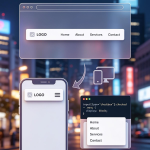
As you see clearly in the image above: UI stands for User Interface Design, and UX stands for User Experience Design. Together they make your product beautiful, easy to use, intuitive, and successful — but they focus on very different things.
In this complete guide, I will explain every part visible in the diagram: exactly what each side does, every activity, every element, and show you examples, tutorials, and how to use these concepts in real projects. Whether you are beginner, designer, developer, or product owner — you will learn everything you need.
🔑 Core Difference: UI vs UX
🎨 UI Design (User Interface)
What it is: The visual part of the product — everything you see, touch, and interact with on screen.
Goal: Make it beautiful, attractive, consistent, branded, and visually clear.
Focus: Look & feel, appearance, visual details.
🧠 UX Design (User Experience)
What it is: The overall experience, feeling, and usability when using the product — from start to finish.
Goal: Make it useful, easy, logical, smooth, and solve user problems perfectly.
Focus: Behavior, flow, logic, emotion, usability.
Simple analogy: UX is the architecture and layout of a building — how you move, find rooms, and feel safe. UI is the paint, furniture, lighting, and decoration — how it looks and feels visually. You need both to make a great building.
🟢 UI Design: Activities & Elements
From the left side of the diagram — these are exactly the activities and elements a UI Designer works on:
✅ Layout
How elements are arranged on screen. Grids, structure, positioning, alignment, balance. Makes sure everything is organized and clear. Example: where to put menu, buttons, images, text.
✅ Colors
Color palettes, branding colors, contrast, hierarchy, moods. Choosing colors that match the brand, are readable, and guide attention. Example: primary color, accent color, neutral shades, text colors.
✅ Typography
Font selection, sizes, weights, spacing, hierarchy. Makes text readable, clear, and consistent. Example: heading font, body text, small labels, bold/italic rules.
✅ Iconography
Designing or choosing icons that are clear, consistent, and match style. Icons represent actions, features, or navigation visually.
✅ Spacing
Whitespace, padding, margins, gaps between elements. Controls breathing room and focus. Too crowded = messy; too spaced = disconnected.
✅ Design Systems
A complete library of reusable components, styles, and rules — so every screen looks and works the same way. Example: button style, input style, card style, all defined once.
✅ Visual Branding
Applying brand identity — logo, style, personality — into every part of the interface. Makes the product feel unique and recognizable.
✅ Prototyping / Wireframes
Building clickable visual versions of the interface to test how it looks and moves before coding.
🟣 UX Design: Activities & Processes
From the right side of the diagram — these are the activities and steps a UX Designer follows:
✅ UX Strategy
Defines goals, purpose, value proposition, and how the product fits the market. Answers: *Why are we building this? What problem does it solve?*
✅ UX Research
Studying users, their needs, habits, pain points, and behaviors. Using interviews, surveys, data analysis. This is the foundation of all good design.
✅ User Stories
Short descriptions of what a user wants to do. Example: *”As a user, I want to check my balance quickly so I know how much money I have.”*
✅ Personas
Creating fictional characters that represent your main users. Helps you design for real people, not just features.
✅ Structure & IA (Information Architecture)
Organizing content, navigation, and features logically. How pages are connected, how menus work, how information is grouped. Makes it easy to find things.
✅ User Flows
Mapping every step a user takes to complete a task. Example: *Login → Dashboard → Send Payment → Confirmation*. Ensures path is short, logical, and smooth.
✅ Usability Testing
Testing with real users to see if they can use the product easily. Finding problems, confusion, or mistakes — then fixing them.
💡 Real Example: Banking App
Let’s use the crypto banking interface in the image as example to see exactly how UI and UX work together:
Result: Users understand exactly how to use it (UX) AND it looks beautiful, professional, and easy to read (UI).
🚀 Tutorial: How To Combine UI & UX In Your Project
Follow this exact process used by professionals:
Step 1: Start With UX First
- Research: Who is this for? What do they need?
- Define: Goals, problems to solve, main features.
- Structure: Draw sitemap, user flows, wireframes (simple boxes only).
- Test: Show wireframes to people. Ask: *”Can you do this task?”*
Step 2: Add UI Design Later
- Style: Choose colors, fonts, icons matching brand.
- Layout: Apply grids, spacing, visual hierarchy.
- Components: Design buttons, inputs, cards, menus consistently.
- Refine: Make it polished, modern, and attractive.
Step 3: Iterate Together
Always go back and forth. Good UX needs good UI to work well. Good UI without good UX is just a pretty product nobody can use.
Tools You Can Use:
- Figma: Best for both UI and UX, prototyping, and collaboration
- Adobe XD: Powerful design and prototyping tool
- Sketch: Popular UI design tool (Mac only)
- Miro: Great for UX flows, research, and brainstorming
✅ Conclusion: What You Learned
Now you clearly understand the difference between UI and UX Design:
- UX = How it works, feels, and helps people — strategy, research, logic, flow, usability
- UI = How it looks, appears, and interacts visually — colors, layout, typography, icons, style
You have learned every activity from the diagram, seen a real example, and have a clear step-by-step guide to apply them. Great products always have both: perfect experience AND beautiful interface.
Now you can talk confidently about UI vs UX, design better products, or hire the right designer for your project.